Table Rate Shipping Rules adds a “Table rate rules” shipping method to WooCommerce. You set prices with rules based on order value, weight, volume, number of items or shipping class, and customers see those prices before checkout.
Requirements
- WordPress 6.8 or newer
- WooCommerce 10.0 or newer
- PHP 7.4 or newer
- Works with WooCommerce shipping zones, classic and block themes, the Cart and Checkout blocks, and High-Performance Order Storage.
Installation
- Download
table-rate-shipping-rules.zipfrom My account > Downloads. - Go to Plugins > Add New Plugin > Upload Plugin, choose the zip file and click Install Now, then Activate.
- Go to WooCommerce > Settings > Shipping, open a shipping zone and click Add shipping method. Choose Table rate rules.
Quick start: cheaper shipping on bigger orders
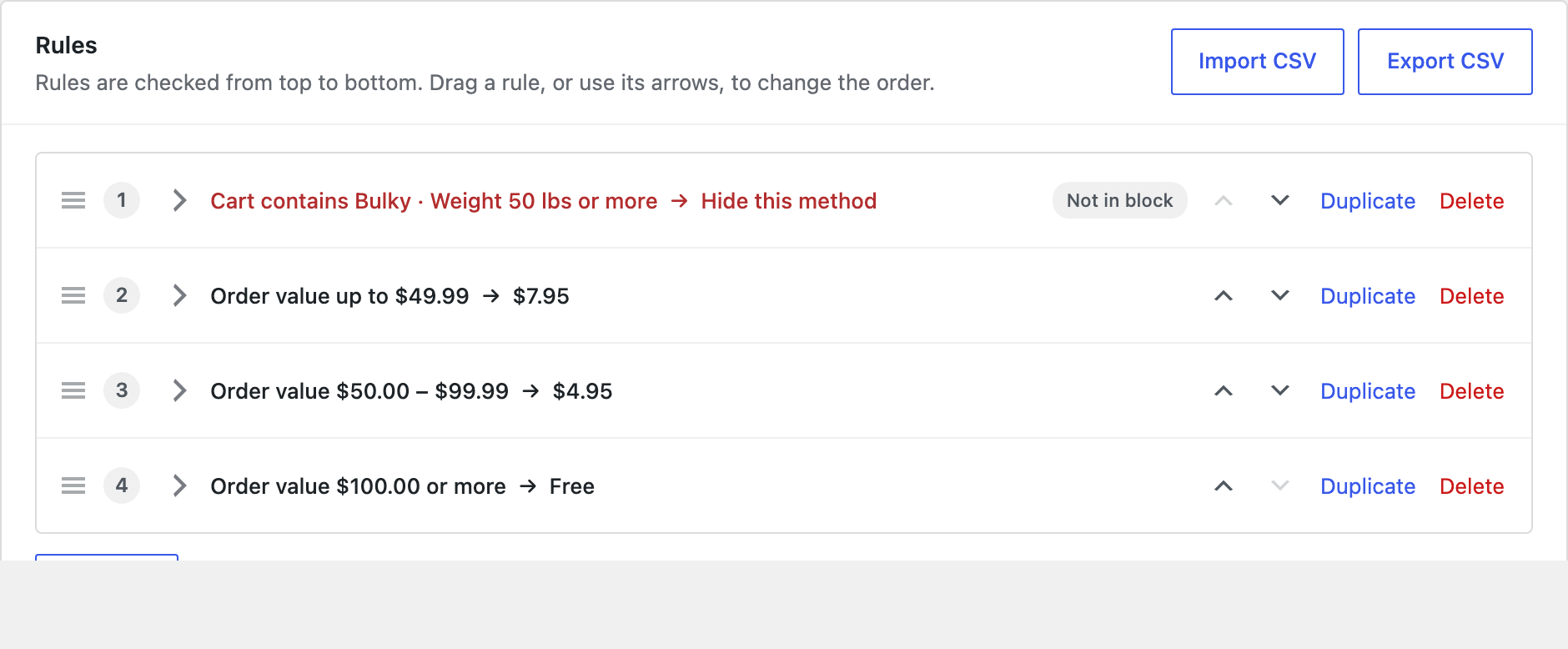
This example charges $7.95 for orders under $50, $4.95 from $50, and free shipping from $100.
- Open the Table rate rules method you added and set Charge shipping to Once for the whole order.
- Click Add rule. Set the condition to Order value, from empty to 49.99, and the fixed price to 7.95.
- Add a second rule for 50 to 99.99 at 4.95, and a third from 100 with a price of 0.
- Save. Each rule now shows a one-line summary, such as “Order value $50.00 – $99.99 → $4.95”.
Writing rules
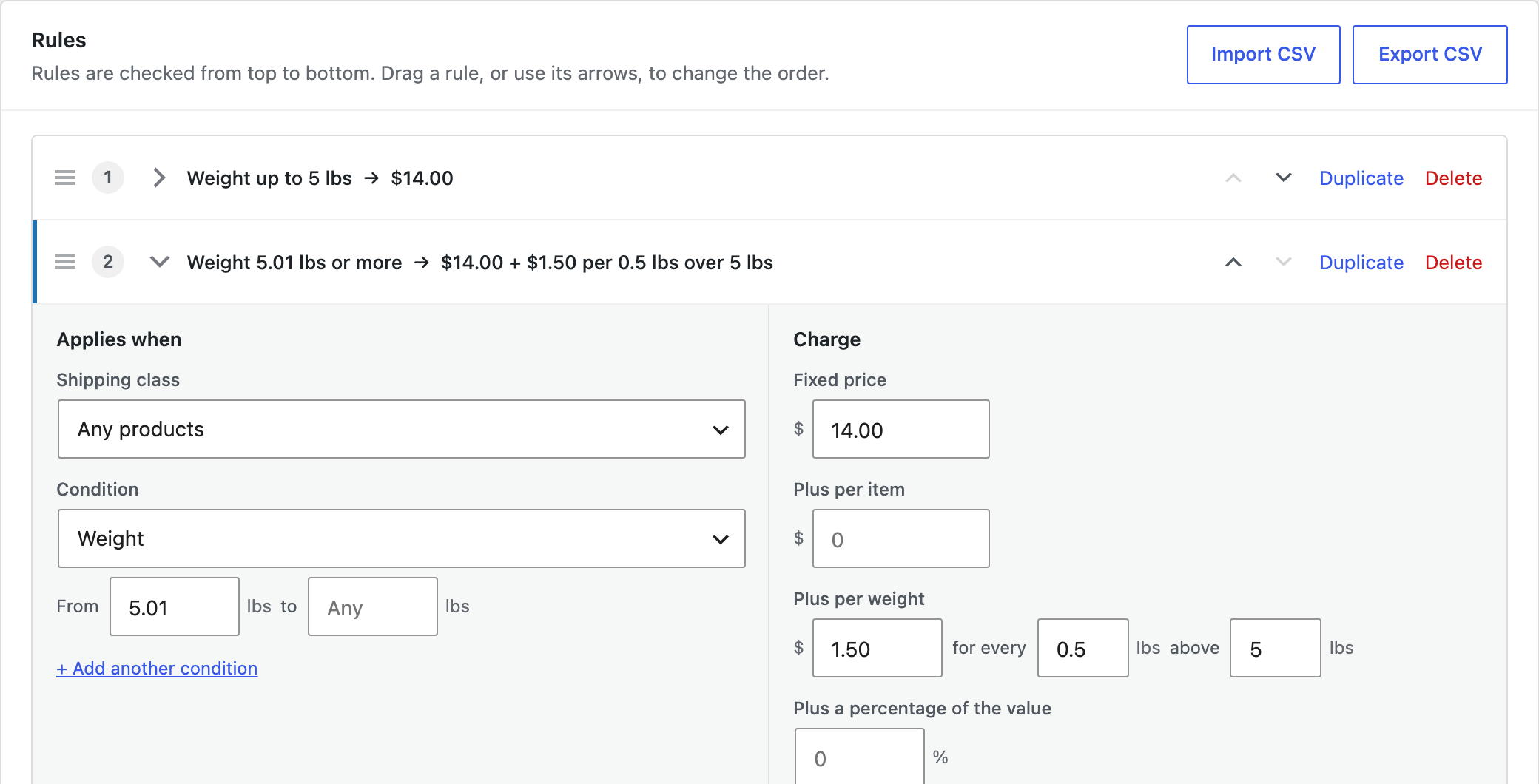
Each rule has three parts. Click a rule’s summary to open it.
| Part | Options |
|---|---|
| Applies when | A shipping class (or any product), and a condition on order value, weight, volume, number of items or items in the shipping class. Click Add another condition for a second one, such as “order value $100 or more and weight up to 20 kg”. |
| Charge | A fixed price, plus optional amounts per item, per weight (also in steps, such as “$1.50 for every 0.5 kg above 5 kg”) and a percentage of the value. |
| Options | Stop checking rules after this one, Hide this shipping method instead (with an optional message for customers), and whether the rule is listed in the Shipping rates block. |
Rules are checked from top to bottom. Drag a rule by its handle, or use its arrow buttons, to change the order.
How shipping is charged
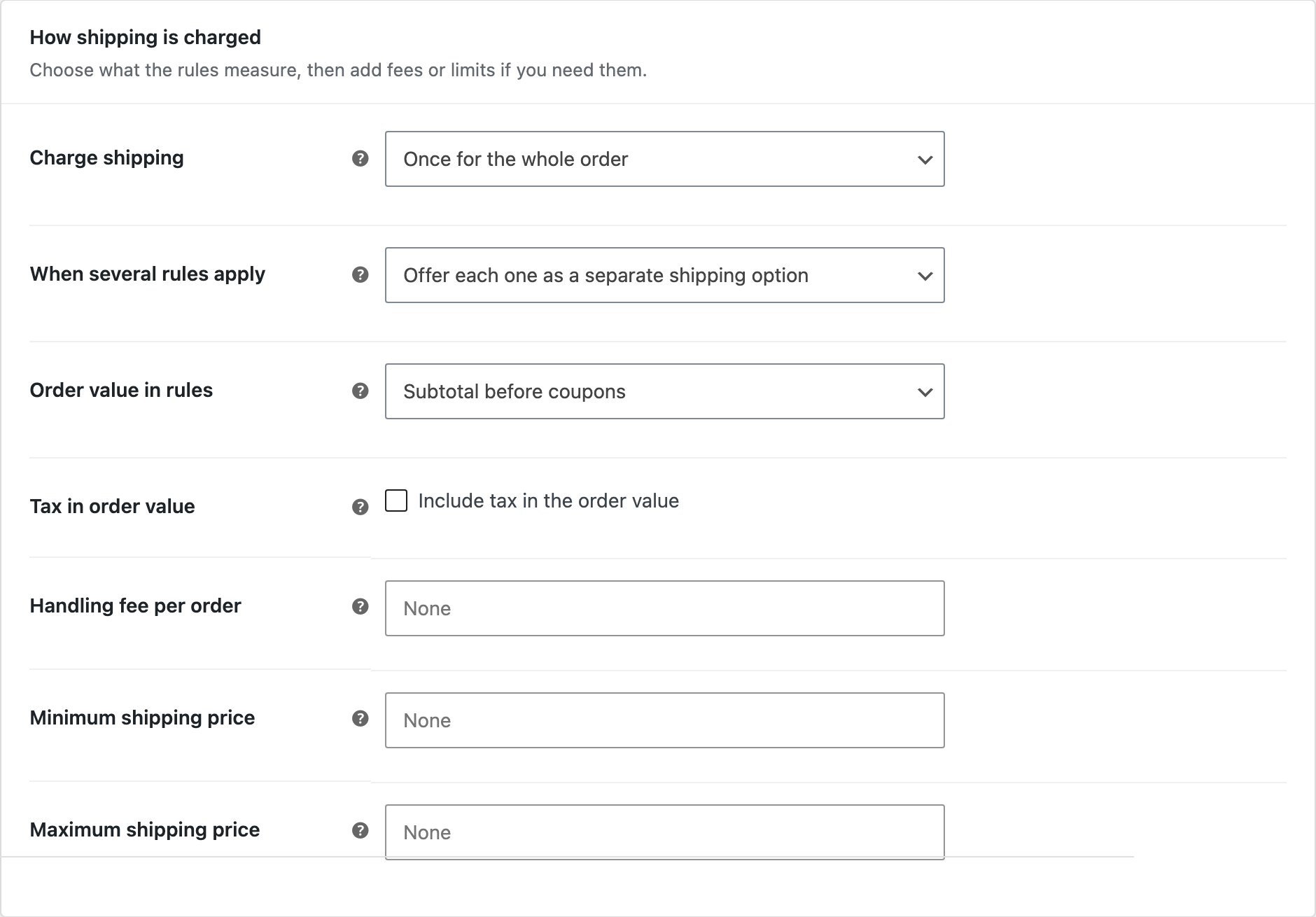
- Charge shipping: once for the whole order, for each item, for each product line, or for each shipping class. Per item, per line and per class add up the price of each part of the cart.
- When several rules apply: offer each one as a separate shipping option (such as Standard and Express), use the cheapest, or use the most expensive.
- Order value in rules: the subtotal before or after coupons, with or without tax.
- Handling fees per order or per part, and minimum and maximum shipping prices.
When shipping is charged once for the whole order, a cart that matches no rule doesn’t get this method. Add a rule with no conditions at the bottom to set a default price.
Showing prices to customers
Add the Shipping rates block to any page, such as a Shipping information page. It lists your prices, built from your rules, with a menu for customers to pick their region. In the block settings you can choose a zone, hide the region menu, and include flat rate, free shipping and local pickup methods.
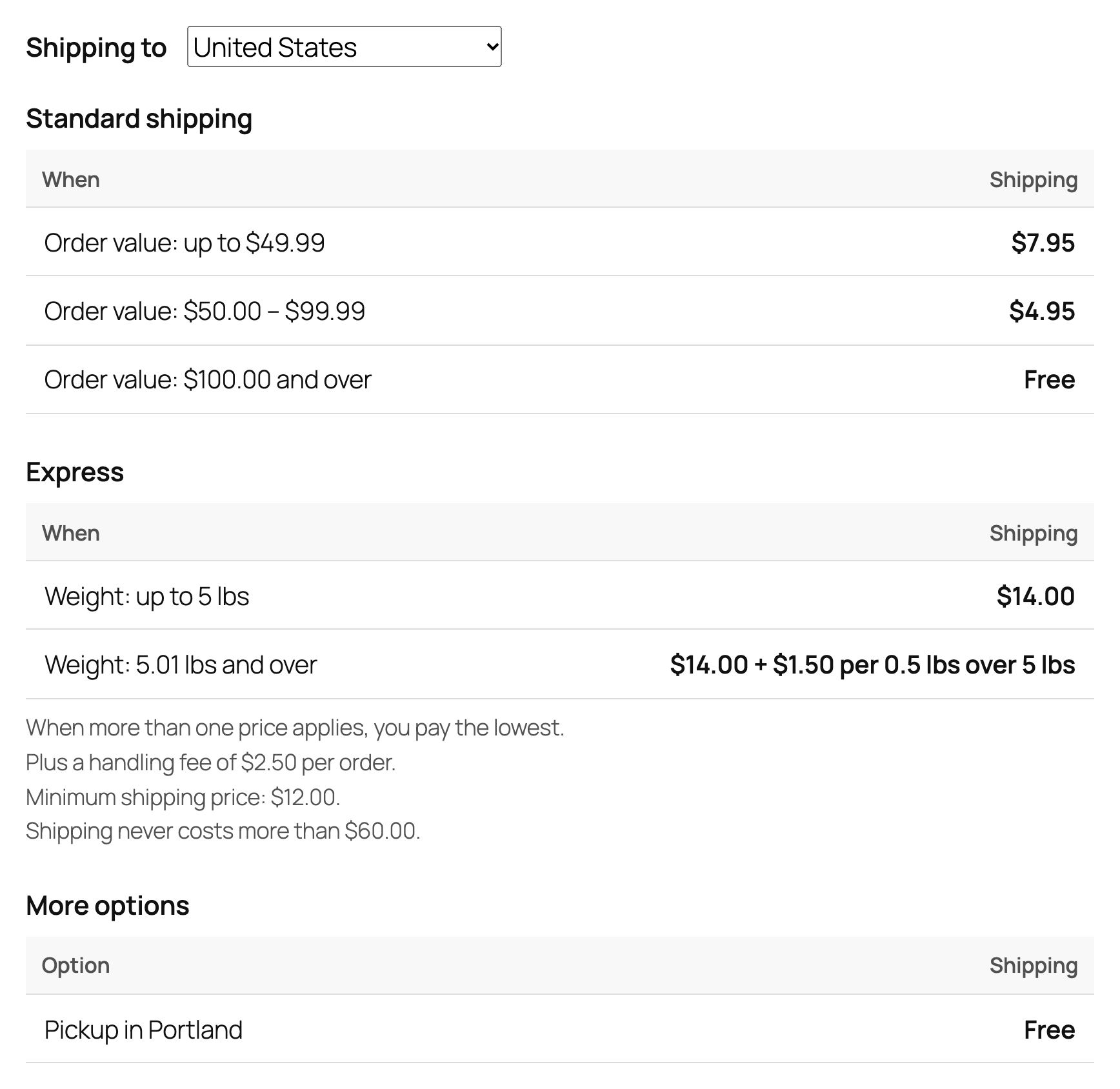
In classic themes, use the shortcode: [trsr_shipping_rates zone="all" picker="yes" other="yes"]. To show prices on product pages, switch on the Shipping tab under WooCommerce > Settings > Shipping > Table rate rules.
Cheaper shipping message
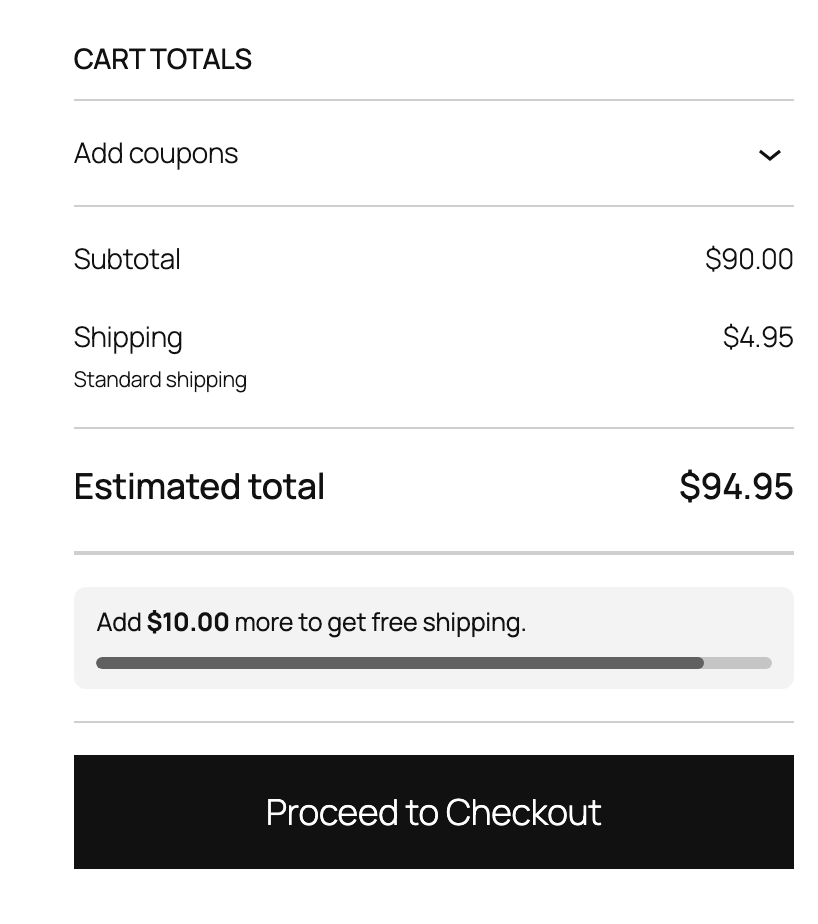
When a higher order value gives a lower shipping price, the cart and checkout tell customers how much more to spend, with a progress bar: “Add $10.00 more to get free shipping.” Change the wording, or turn the message off for the cart or checkout, under WooCommerce > Settings > Shipping > Table rate rules. Use {amount} for the amount still needed and {cost} for the new price.
Import and export
Use Export CSV to download a method’s rules, edit them in a spreadsheet, and bring them back with Import CSV. It’s also the quickest way to copy rules between zones or stores. The importer checks every row and lists any it had to skip.
For developers
| Filter | Use |
|---|---|
trsr_rules | The rules of a method before they are checked. |
trsr_rule_matches | Whether a rule matches a package. |
trsr_rule_cost | The price a rule charges. |
trsr_rate_args | The shipping rate passed to WooCommerce. |
trsr_savings_message | The cheaper shipping message. |
trsr_rate_table_zones | Zones listed in the Shipping rates block. |
To change the look of the rates table or the cart message, copy public/templates/shipping-rates.php or public/templates/cart-messages.php to yourtheme/table-rate-shipping-rules/ and edit the copy.
Frequently asked questions
When does the cheaper shipping message appear?
When the chosen shipping option comes from a Table rate rules method that charges once for the whole order, and a rule with a higher order value gives a lower price.
What happens to items that match no rule?
When shipping is charged per item, per line or per shipping class, items that match no rule ship free. Add a rule with no conditions at the bottom to set a default price.
Can I use it in several zones?
Yes. Add a Table rate rules method to any zone, as many times as you like, each with its own rules.
Changelog
1.0.0 · October 4, 2026
- Table rate rules shipping method with conditions on order value, weight, volume, item count and shipping class.
- Two conditions per rule, step pricing by weight, per item and percentage prices.
- Charging per order, per item, per product line or per shipping class, with handling fees and price limits.
- Shipping rates block, shortcode and optional product tab.
- “Add $X more for cheaper shipping” message with a progress bar in the classic and block cart and checkout.
- Rules editor with one-line summaries, drag and keyboard reordering, and CSV import and export.